
Support analytics
Analytics shows how quickly your team resolves tickets, where tickets wait the longest, how each person is doing, and how live chat is going.
Everyone can view analytics by default. Owners and Admins see everyone's performance and can generate AI performance reports; everyone else sees the company-wide numbers and only their own row.
Ticket metrics
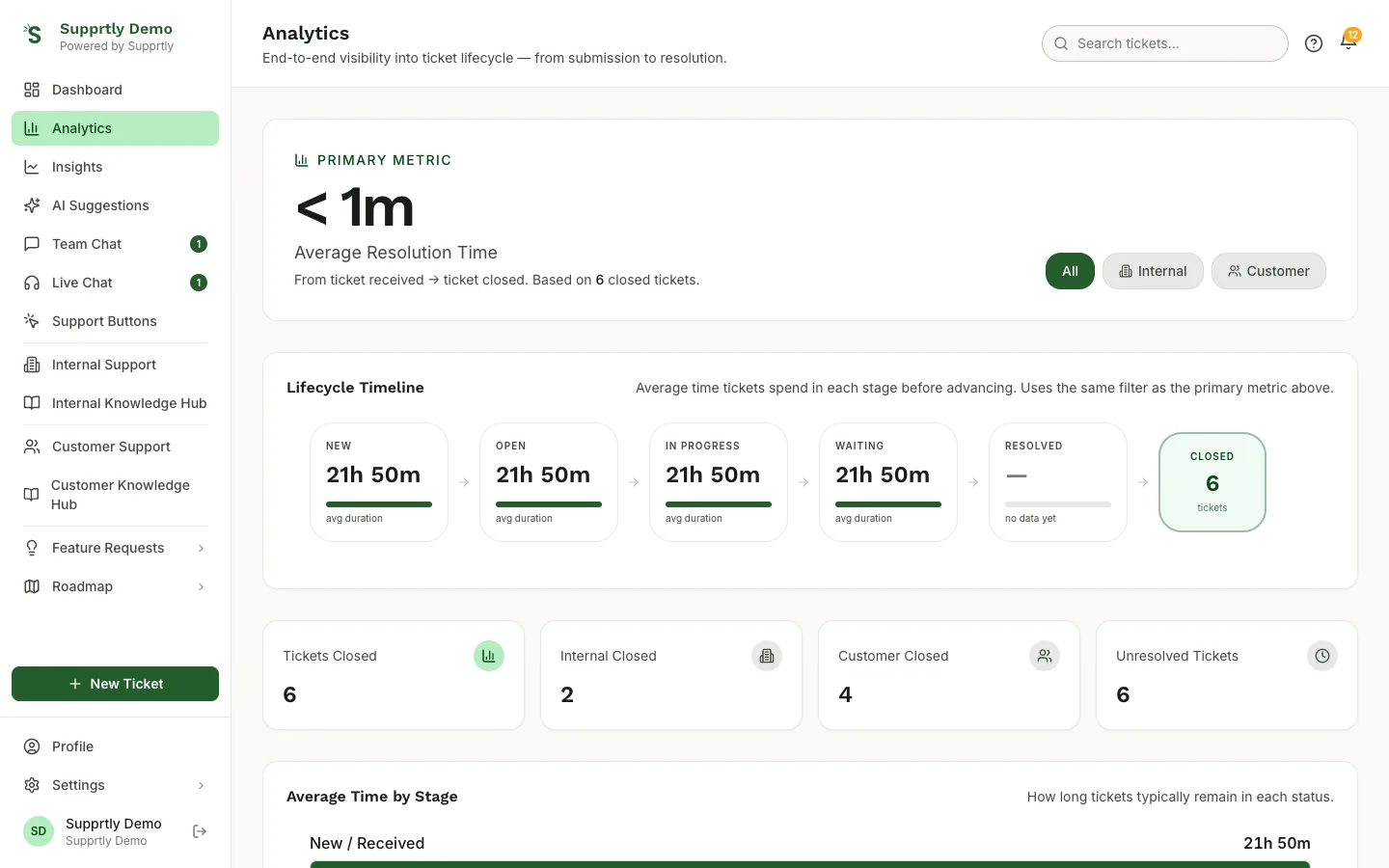
| Average Resolution Time | From when a ticket is created to when it's closed, across closed tickets. Shows — until something is closed; long times show as days and hours (for example 2d 4h). |
| Lifecycle Timeline | Average time tickets spend in each status: New, Open, In Progress, Waiting and Resolved. Only finished stays count, so a ticket that's still open doesn't inflate the numbers. |
| Tickets Closed | How many tickets were closed, with Internal Closed and Customer Closed. |
| Unresolved Tickets | Tickets not yet resolved or closed. |
| Average Time by Stage | The same stages as a bar chart, to spot bottlenecks. |
| Recently Closed Tickets | The latest closed tickets for the inbox you're viewing, newest first. |
Team performance
Pick 7d, 30d or 90d to see the whole team's numbers for that period. It uses the sameAll / Internal / Customer filter as the rest of the page.
| Tickets created | Tickets that arrived in the period, with how many were resolved and how many are open right now. |
| First response | Median time from a ticket arriving to the first reply the requester can see (internal notes don't count), and the share answered within 1 hour. |
| Resolution time | Median time from a ticket arriving to when it was first resolved or closed, and the share resolved within 24 hours. |
| Waiting over 24h | Open tickets older than a day that haven't had a reply yet, plus how many were reopened. |
| Live chats handled, Chat wait, Chat rating | Chats an agent joined, how long visitors waited for them (median), and visitors' average star rating. Not shown for Internal. |
| Replies sent | Replies the requester can see, sent in the period. |
Under By person, each row shows what that person did: tickets assigned to them, resolved, open now, replies, their median first response and resolution time, chats and rating. First response is credited to whoever replied first, even if the ticket was assigned to someone else. Click a name to open their page.
One person's performance
A person's page shows their numbers next to the team typical: the median across everyone who did support work in the period. Each card is tagged Better than typical or Below typical. Agents can open their own page from theYour performance row; they can't open anyone else's.
AI performance and coaching reports
AI performance report (next to the period picker) writes a report on the whole team: overall health, strengths, where time is lost (most serious first, with the numbers behind it), how to improve with impact and effort, a table by person, and what to keep an eye on. It compares the period with the one before.
On a person's page, the AI coaching report does the same for one person, compared with their previous period and the team typical, in a supportive tone. Owners and Admins generate reports; the person can read their own once it exists. Both open in a new tab, branded and ready to share, with Download PDF.
Live chat analytics
Pick Day, Week, Month or Year to see chat volume and session time for that period, in your own time zone:
| Chat Sessions | Chats started in the period. |
| Avg Session Time | From the visitor's request to the end of the chat, for chats that have finished. |
| Avg Rating, Ratings Received | Visitors' 1–5 star ratings after a chat. |
| Active Right Now | Chats going on at this moment, whenever they started. |
| Ended Chats | Chats started in the period that have finished, including missed ones. |
Using it
- Switch between All, Internal and Customer to compare your two inboxes.
- A long New stage means tickets wait too long for a first look. Ticket routing can assign them the moment they arrive.
- A long Waiting stage usually means you're waiting on customers. Follow up or close stale tickets.
Ready to set up your help desk?
Create your workspace and follow the steps above.