
Team chat
Team chat is built-in messaging for your support team, so ticket discussions don't get lost in another app.
Start a conversation
Click New and pick one teammate for a direct message, or several for a group (for example “Support team”). Conversations are listed on the left with the latest message. The number next to Team Chat in the sidebar counts your unread messages.
New messages arrive instantly. If you're on another page, a pop-up shows who wrote and what, and the conversation is listed in the bell; click either to open it. See Alerts and the bell.
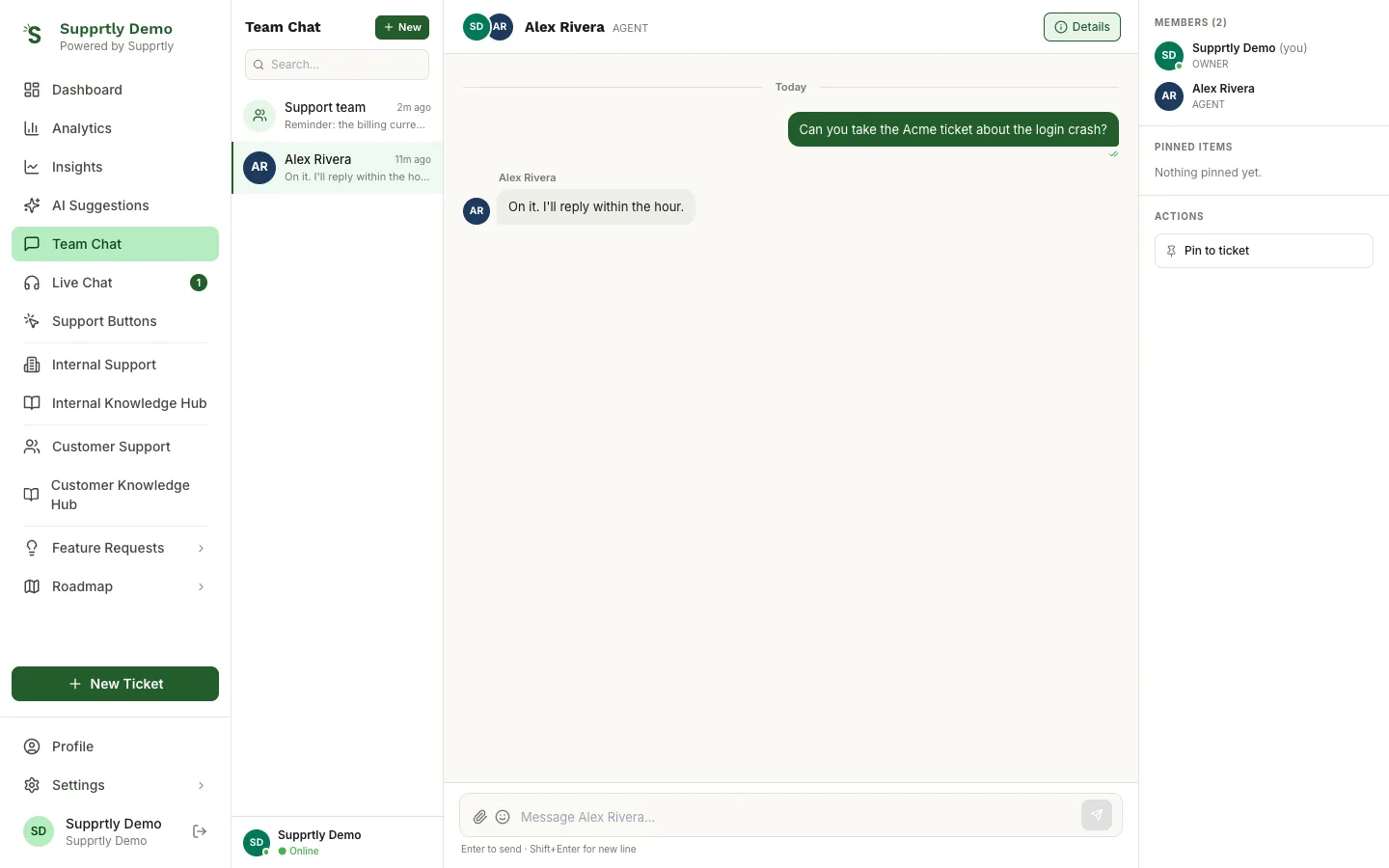
Send messages and files
- Press Enter to send, and Shift + Enter for a new line.
- Use the paperclip to attach files (up to 10 per message, 25 MB each). You can send files with or without text; images show as a preview, other files as a download. Only people in your workspace can open them.
- Use the smiley to add an emoji where your cursor is.
- Web addresses you type (https://… or www.…) become clickable links that open in a new tab.
- The sparkle (Draft AI reply) writes a reply to the latest messages using the conversation and your internal knowledge hub, and puts it in the box to edit before sending. It uses your workspace's own AI key; without one, it suggests the best matching internal doc.
- The green dot shows who is online.
Pin to a ticket
Click Details, then Pin to ticket to link the conversation to a ticket, so anyone working on that ticket can find the discussion. Pinned items are listed in the details panel.
Ready to set up your help desk?
Create your workspace and follow the steps above.