
Live chat
Live chat lets visitors talk to your team in real time from the support widget. Chats that need follow-up can be turned into tickets with one click.
Agents can answer chats. Owners turn live chat on and set it up in Settings → Live Chat.
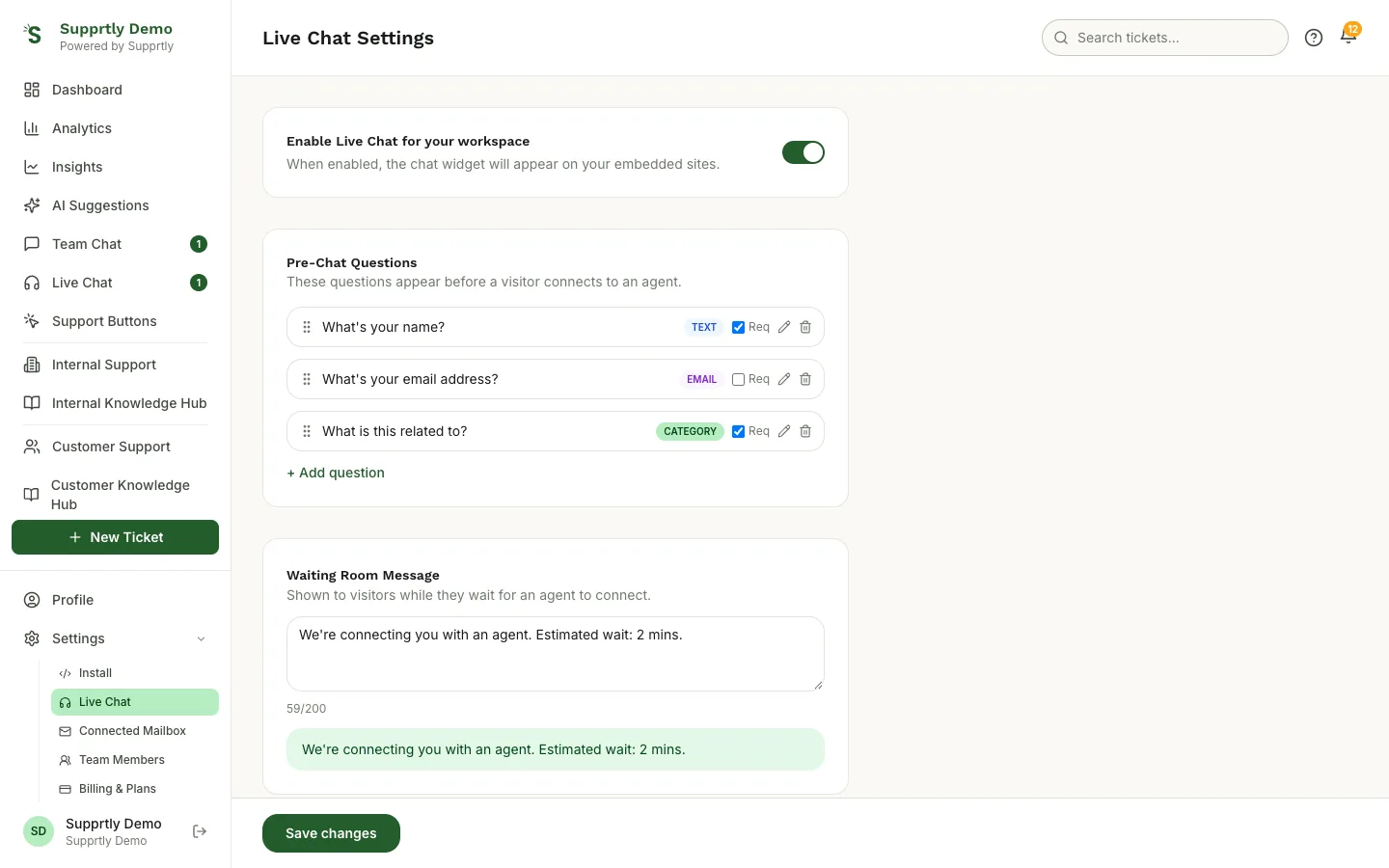
Turn on live chat
- Open Settings → Live Chat and switch on Enable Live Chat for your workspace
- Set pre-chat questions
These are asked before a visitor connects, for example their name, email and what it's about. Each question can be text, email or a list of categories, and can be required.
- Write a waiting room message
Shown while the visitor waits, for example “We're connecting you with an agent. Estimated wait: 2 mins.”
- Choose when an unanswered chat is missed
Under Unanswered Chats, pick 2 to 60 minutes (10 by default). If nobody claims the chat in that time, it's marked as missed and the visitor can leave a message instead.
- Set your working hours (optional)
Under Working Hours, set the days and times you offer live chat. See Working hours below.
- Add Live chat to a support button
In the button's Form components, switch on Live chat. See Support buttons.
Your availability
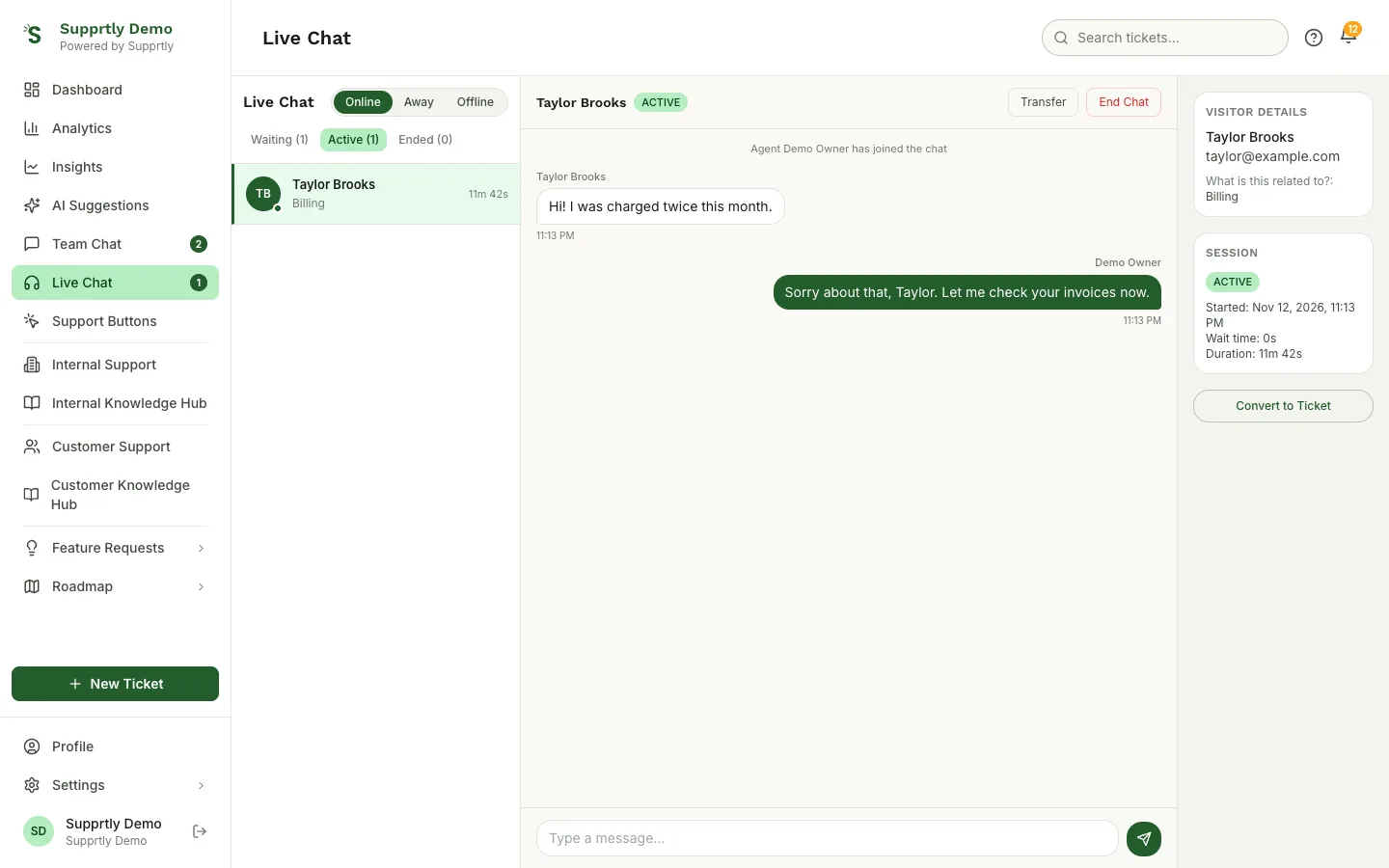
At the top of the Live Chat page, set yourself Online, Away or Offline. Visitors can only start a chat when at least one agent is online. The number next to Live Chat in the sidebar counts chats waiting to be claimed plus your chats with visitor replies you haven't read. New chats and replies also pop up on any page, with a sound, and are listed in the bell (see Alerts and the bell).
You only count as online while Supprtly is open in your browser. A couple of minutes after you close it, visitors see you as offline, and you're back automatically when you return.
When no one is available
Visitors can Leave a message with their name, email and message. It becomes a customer ticket (tagged live-chat-offline) so you can reply by email, and your routing rules assign it.
Working hours
In Settings → Live Chat, switch on Working Hours, pick your time zone, and set the opening and closing time for each day (for example Monday to Friday, 7 AM to 5 PM). Switch a day off to close all day.
Then choose what happens Outside working hours:
| Always closed | The widget shows you're closed, even if an agent is online. Predictable for customers and your team. |
| Open if an agent is online | Anyone online after hours can still take chats. If nobody is online, visitors see the after-hours screen. |
Outside hours, visitors see We're closed right now with your After-hours message, your live chat hours and when you're back (for example “tomorrow at 7 AM”), and a Submit a support ticket button. The ticket is a customer ticket tagged live-chat-offline and after-hours, so you can find and answer them first thing.
Answering chats
- Pick a chat from Waiting
The Waiting, Active and Ended tabs sort chats by state (missed chats are listed under Ended). Open a waiting chat and click Claim Chat. If a teammate claimed it first, you'll see who. A dot marks chats with new visitor messages.
- Reply in the message box
The visitor sees your messages instantly. The panel on the right shows their answers to the pre-chat questions and how long they've waited.
- Or click Draft AI response
It writes a reply to the customer's latest message from the conversation, their pre-chat answers and your customer knowledge hub, and puts it in the message box for you to edit and send. Nothing is sent automatically. It uses your workspace's own AI key; without one, it suggests the best matching article.
Transfer, end or convert
| Transfer | Hand the chat to another online agent, for example a billing specialist. |
| End Chat | Close the conversation. It moves to the Ended tab. |
| Convert to Ticket | Create a ticket with the full chat transcript, for issues that need follow-up after the chat. It's assigned to the agent who handled the chat. |
Closing the widget
Visitors can minimize the chat and bring it back from the button; if you write while it's minimized, a red number shows on the button. If they reload the page, the chat picks up where it left off. If they leave for good, a waiting chat is marked missed after about 2 minutes, and an active chat ends after about 5. After a chat ends, they can rate it, start a new chat, or go Back to help options.
Ready to set up your help desk?
Create your workspace and follow the steps above.