
Your profile and notifications
Your profile holds your own details and what you're notified about. It only affects you.
Your details
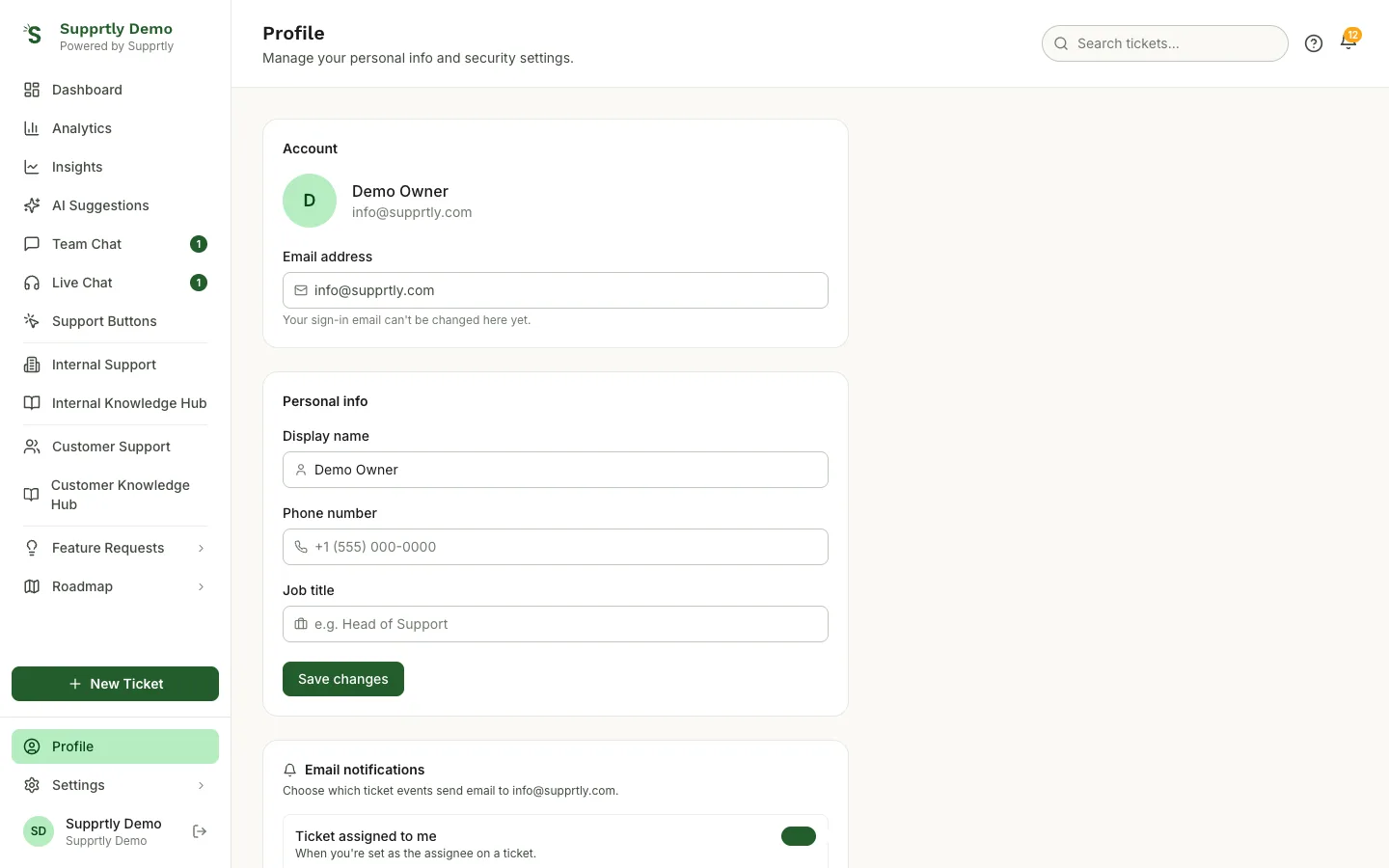
Open Profile at the bottom of the sidebar. Update your Display name, Phone number and Job title, then click Save changes. Your display name is what teammates and customers see on your replies, and it updates everywhere in the app, including the workspace owner name.
Change your email
- Click Change email under Email address
- Enter the new address and click Send confirmation
- Open the link we email to the new address
Your email changes once you confirm. Until then you keep signing in with the old one.
Notifications
| Ticket assigned to me | An email when you're set as the assignee on a ticket (by a teammate or by routing rules). |
| Notify me when a customer replies | On tickets assigned to you, or that you last replied to. Unassigned tickets nobody has answered go to admins. Choose In-app (the bell), Email, or both. |
| Weekly summary digest | A weekly recap of your open tickets and workspace trends. Click Send me a test to see what it looks like. |
Click Save notification preferences after changing them.
New live chats and team chat messages pop up in the app and are listed in the bell. See Alerts and the bell, including how to get desktop alerts when Supprtly is in a background tab.
Workspace-wide emails, like one for every new ticket, are set by the Owner in Workspace settings.
Password
In the Password section, click Send password reset email. Open the link we email you and choose a new password. Signed out? Use Forgot password? on the sign-in page instead.
If you sign in with Google, your password is managed by Google, not Supprtly.
Two-step sign-in
Turn on Two-step sign-in to be asked for a code we email you when signing in on a new device. See Two-step sign-in.
Delete your account
Delete my account at the bottom of your profile deletes your account after 30 days. Sign in before then to cancel. See Delete your account, including what happens to workspaces you own.
Ready to set up your help desk?
Create your workspace and follow the steps above.