
Workspace settings
Workspace settings apply to everyone in your workspace.
Owners by default. You can give Admins access in role permissions.
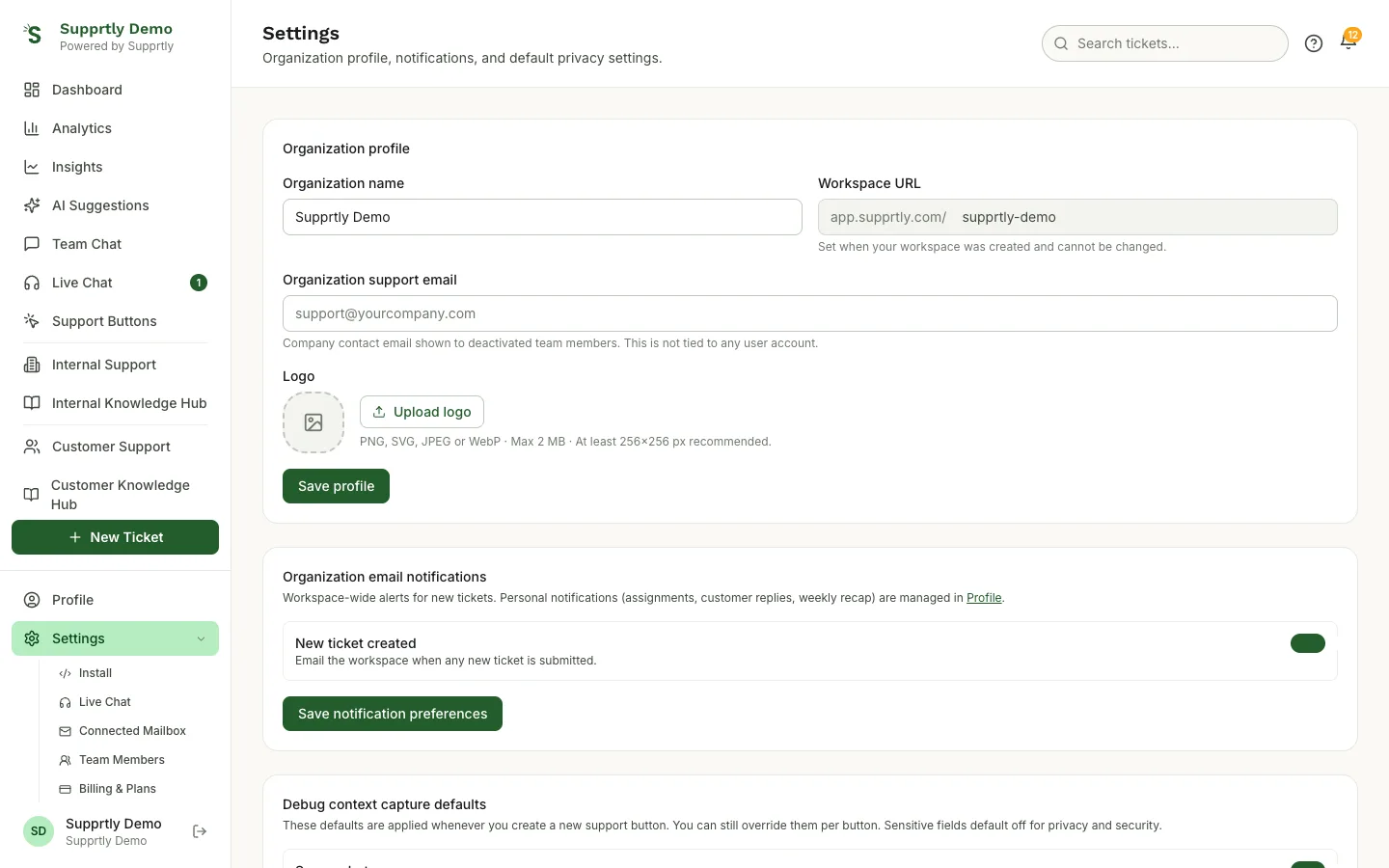
Organization profile
| Logo | PNG, SVG, JPEG or WebP, up to 2 MB (256×256 px or larger looks best). Also used by support buttons set to Logo only. |
| Organization name | Your company name, shown to customers. |
| Organization support email | A company contact address shown to team members whose access has been deactivated, so they know who to ask. It isn't tied to any user account. |
| Workspace URL | The name used in your public links, like /your-workspace/knowledge-hub. It's set from your company name when the workspace is created and can't be changed, so shared links keep working. |
Click Save profile when you're done.
Workspace email notifications
New ticket created emails the workspace when any new ticket is submitted. Personal emails (assignments, replies, weekly digest) are set by each person in their Profile.
Require two-step sign-in
Turn this on to make everyone in the workspace enter an emailed code when they sign in on a new device. Owners and admins can change it, after turning two-step sign-in on for themselves. See Two-step sign-in.
Debug context capture defaults
The capture options new support buttons start with: screenshot, current URL, browser info, device info, console errors, network errors, app state and session replay. Each button can override these. See Debug context capture for what each one collects.
AI provider
Connect Claude, OpenAI or Grok with your own API key. See AI suggestions and your AI provider.
Export data
Owners and admins can download everything in the workspace as one ZIP. We email a link when it's ready. See Export your workspace data.
Shared ticket links
Owners and admins see every read-only ticket link that still works, who shared it, when it expires and how often it was viewed, and can turn any of them off.
Other settings pages
Expand Settings in the sidebar for:
| Install | Add the widget to your site and identify users. |
| Live Chat | Turn live chat on, pre-chat questions, the waiting and offline messages, and when unanswered chats are marked missed. |
| Connected Mailbox | Send ticket replies from your work email. |
| Ticket Routing | Choose who gets each new ticket automatically. |
| Team Members | Invite teammates and set role permissions. |
| Billing & Plans | Your plan, trial, licenses and invoices. |
| Developers | API keys and webhooks for connecting your own tools. |
Ready to set up your help desk?
Create your workspace and follow the steps above.