
Team members, roles and permissions
Invite your teammates and decide what each role can see and change. Every workspace has one Owner; everyone else is an Admin or an Agent.
Only the workspace Owner manages the team and role permissions by default.
Roles
| Role | By default |
|---|---|
| Owner | Full access to everything, always. Manages billing, settings and the team. There's one Owner per workspace. |
| Admin | Full access to tickets, chat, buttons, knowledge hubs, feature requests, roadmap, reports, Insights and ticket routing. No access to Settings, Billing or Team Members. |
| Agent | Works tickets, live chat, team chat and feature requests (create, view and update, but not delete). Can view everything else they need, like knowledge hubs, buttons and the roadmap. |
Invite a teammate
- Open Settings → Team Members
- Enter their email address and, optionally, their name
- Choose a role and send the invite
They get an invite email. They create an account (or sign in) with that same email address, confirm it, and land in your workspace. Until then they show as pending.
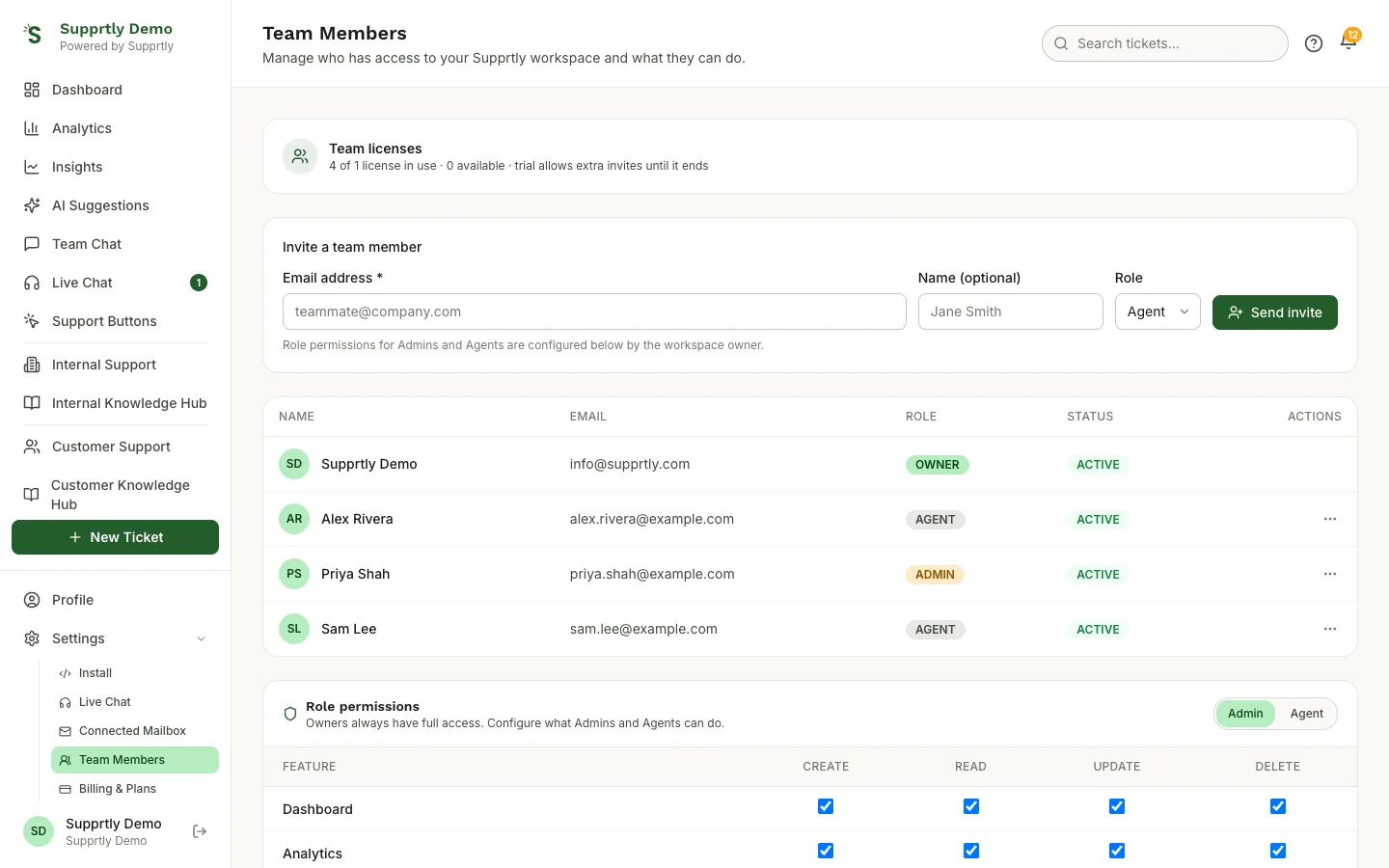
Customize role permissions
Below the team list, the Owner can fine-tune what Admins and Agents can do for every area of Supprtly: Dashboard, Analytics, Insights, AI Suggestions, Team Chat, Live Chat, Support Buttons, Internal and Customer Tickets, both knowledge hubs, Feature Requests and their widget, Roadmap and its public page, Billing, Settings, Ticket Routing and Team Members.
For each area you choose Create, View, Update and Delete separately. For example, let Agents publish knowledge hub articles, or give Admins access to Settings. Changes apply right away.
Change roles or remove someone
Use the Actions menu next to a teammate to change their role or remove them. When you remove someone, you can choose who gets their assigned tickets in Reassign their tickets to. If you leave it blank, their tickets become unassigned. Removing a teammate can't be undone, but you can invite them again.
- A new role takes effect straight away, including in any tabs they already have open.
- Roles can be set to Admin or Agent here. Nobody can change their own role.
- The Owner's role can't be changed from this page. Ownership moves to an admin when the Owner deletes their account and chooses to transfer it.
Team licenses
The Team licenses card shows how many licenses are in use and how many are free.
Ready to set up your help desk?
Create your workspace and follow the steps above.