
Finding your way around
A quick tour of the screens you'll use every day.
The sidebar
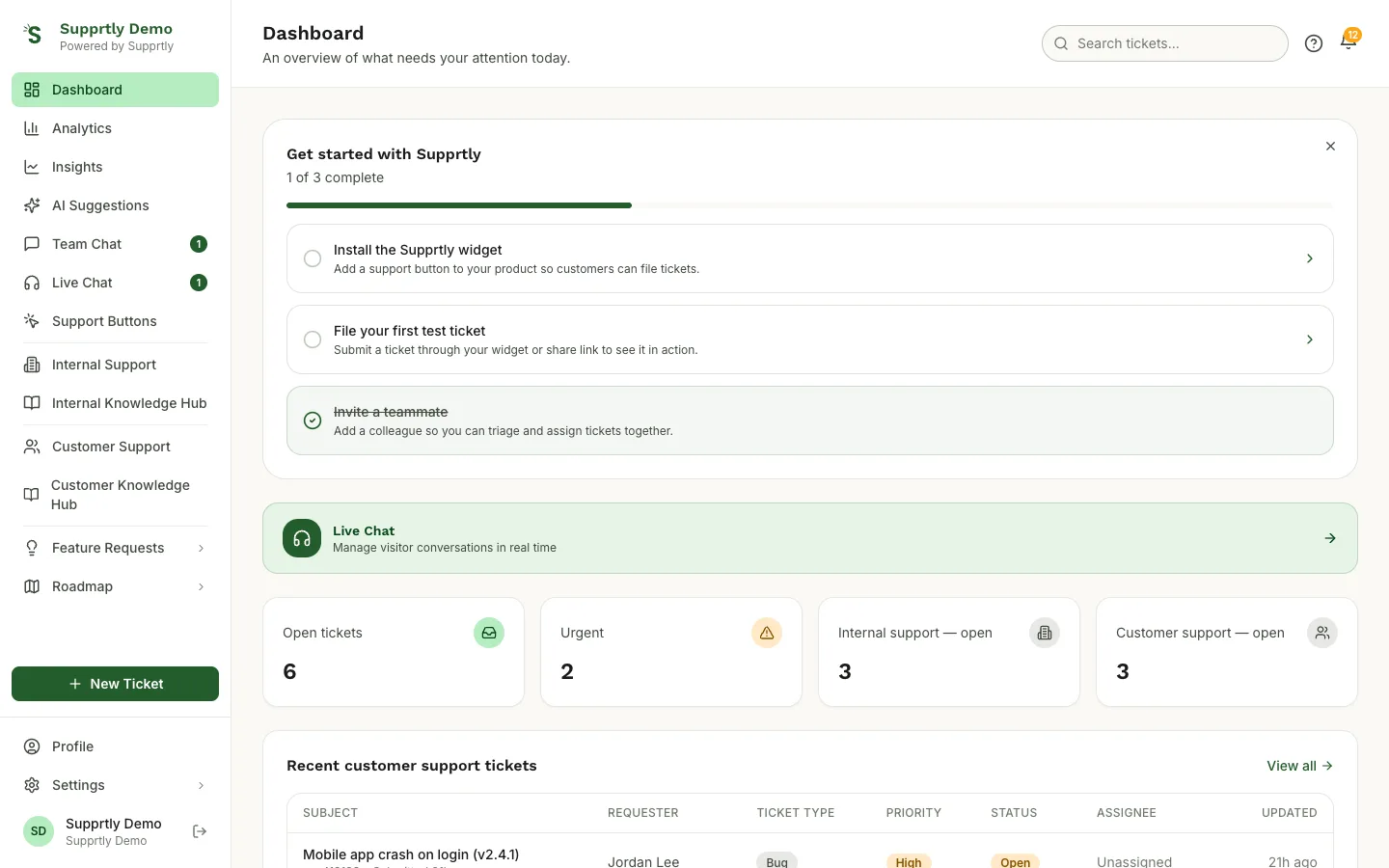
Everything in Supprtly is one click from the sidebar on the left. It's grouped by job:
| Dashboard, Analytics, Insights | How things are going: open work, support metrics and product usage. |
| Team Chat, Live Chat | Talk to teammates, and to website visitors in real time. The number next to Team Chat is your unread messages; next to Live Chat it's chats waiting to be claimed plus your chats with new visitor replies. |
| Support Buttons | The buttons and widgets people use to contact you. |
| Internal Support, Internal Knowledge Hub | Requests from employees (IT, HR, operations) and your team's internal docs. |
| Customer Support, Customer Knowledge Hub | Requests from customers and your public help articles. |
| Feature Requests, Roadmap | Product ideas, votes and your plan. Expand them for widget and public page settings. |
| New Ticket | Create a ticket yourself, for example after a phone call. |
| Profile, Settings | Your own details, and workspace settings: Install, Live Chat, Connected Mailbox, Ticket Routing, Team Members and Billing (each shows only if your role allows it). |
You only see the items your role allows. If something is missing, ask your workspace owner (see roles and permissions).
Search, help and notifications
- Search tickets: type a subject, ticket code (like
cp-412123), requester name or email to jump straight to a ticket. - Help (?): opens this help center from any page.
- Notifications (bell): everything new for you. Click an item to open it. See below.
Alerts and the bell
The bell lists, newest first:
- Live chats waiting for an agent (always at the top), and new visitor replies in your live chats.
- Customer replies on your tickets, grouped per ticket (“+2 more replies”).
- New tickets and unread team chat conversations.
The number on the bell counts them. Mark all as read clears replies and new tickets; waiting chats and unread team chats stay until you handle them.
Pop-ups: when a new live chat arrives, a visitor replies in your chat, or a teammate messages you, a pop-up with a short sound appears at the top right on any page. Click it to open that chat. It closes by itself after a few seconds, or when you open the bell. You don't get one for the team chat you're already reading.
Contact Supprtly support
The Get help button at the bottom right of every page is Supprtly's own support widget. Use it to send our team a ticket or chat with us. When we reply, a red number appears on the button.
The dashboard
The dashboard is your home page. It shows how many tickets are open, what needs attention and recent activity across customer and internal support.
New workspaces also see a short setup checklist on the dashboard: install the widget, file a test ticket and invite a teammate. It ticks itself off as you go, and you can dismiss it at any time.
Signing in and out
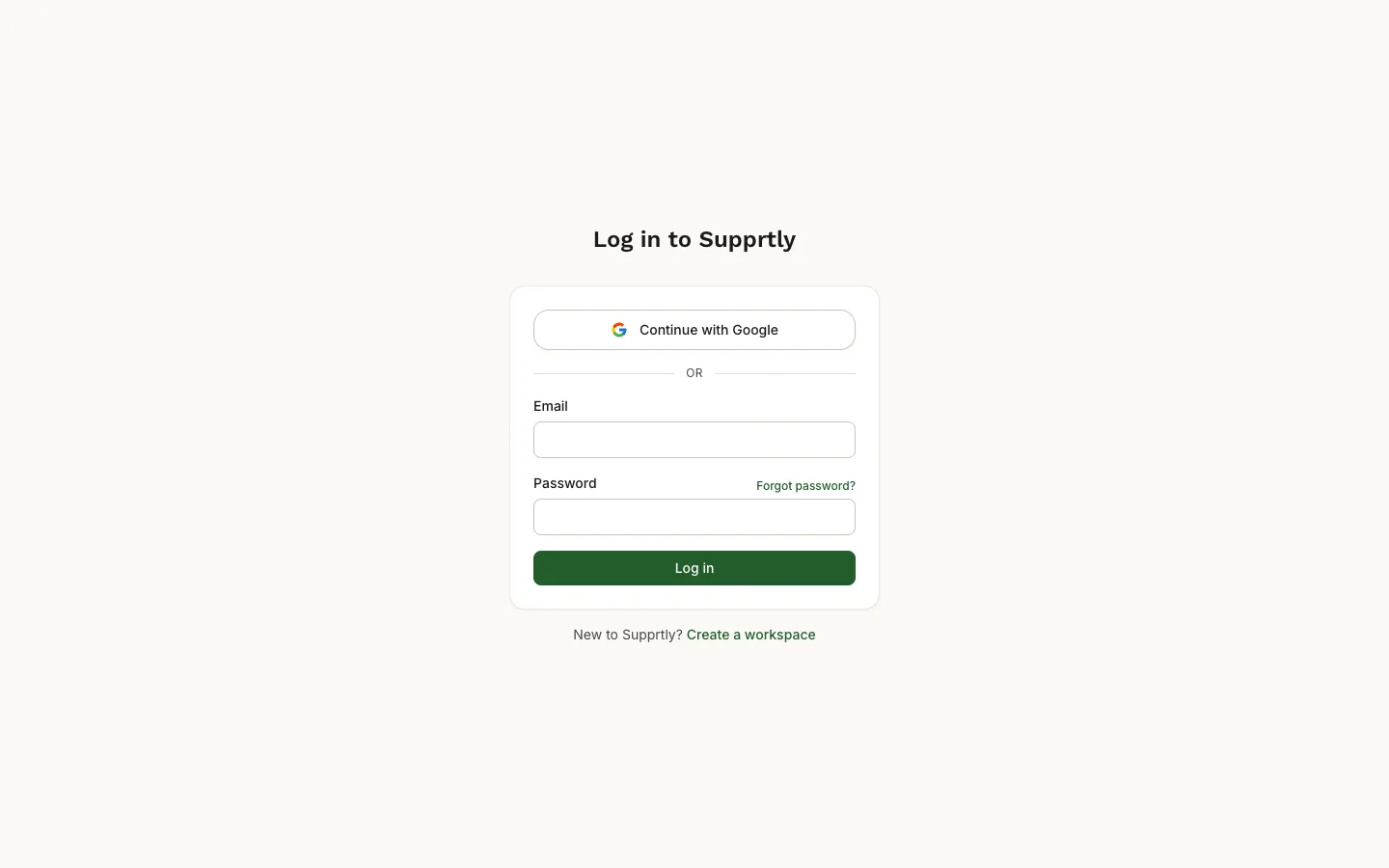
Sign in with your email and password, or click Continue with Google. Forgot your password? Click Forgot password? on the sign-in page and we'll email you a reset link. To sign out, click the arrow icon next to your name at the bottom of the sidebar.
With two-step sign-in on, you'll also enter a 6-digit code we email you when signing in on a new device. If you've asked to delete your account, signing in shows the deletion date and a Cancel deletion button.
Ready to set up your help desk?
Create your workspace and follow the steps above.