
Insights: product usage tracking
Insights shows how people use your website or app: which pages they visit, which features they click, and where they get stuck. It's anonymous and works with a small snippet.
Owners and Admins create snippets. Everyone can view the results by default.
Create a snippet
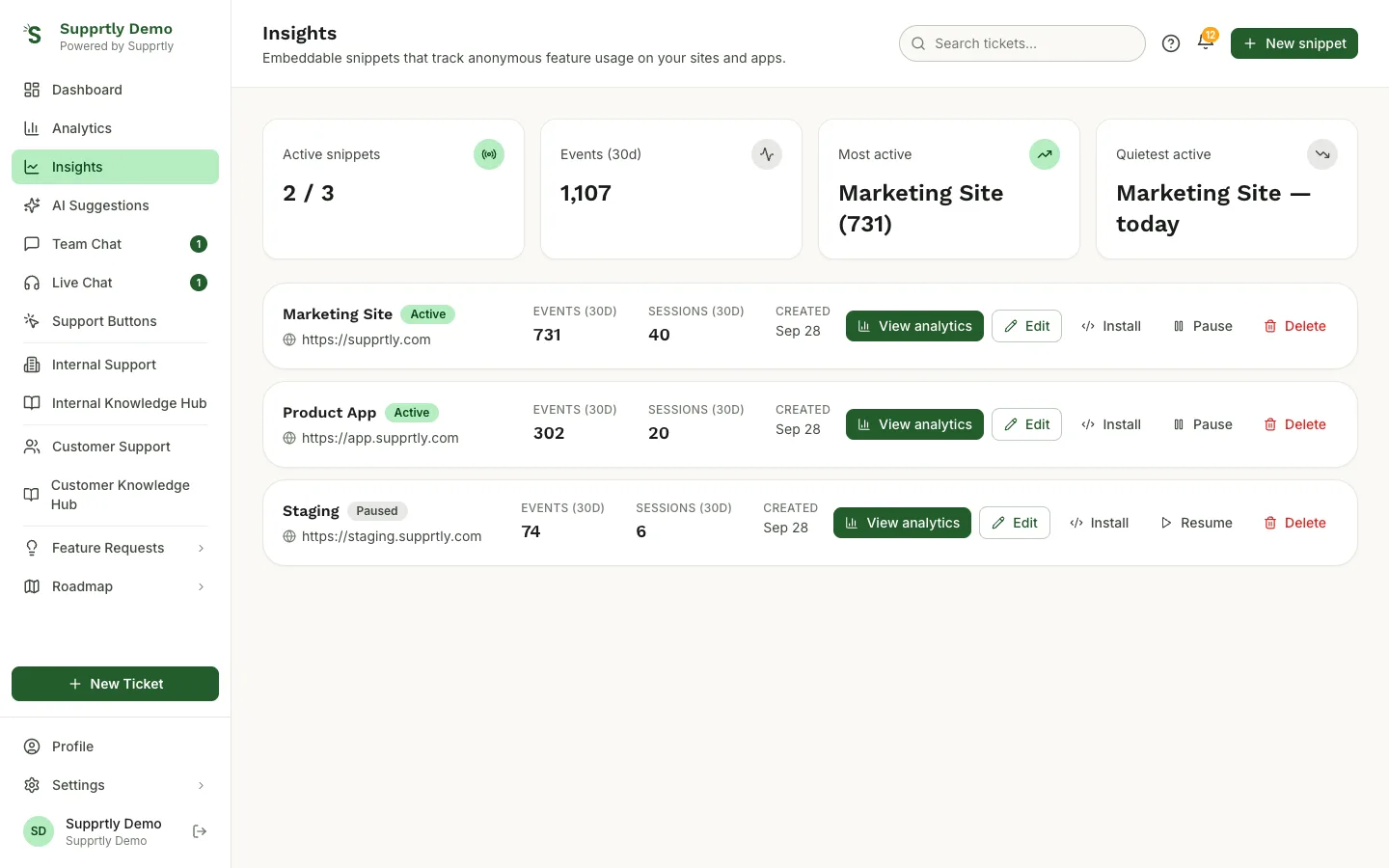
A snippet tracks one site or app (for example “Marketing site” or “Product app”). Click New snippet, enter a name and the domain, and save.
Install and verify
- Click Install on the snippet
Copy the script and paste it into the
<head>of your site. - Click Verify installation
Visit your site in another tab. When events arrive, the snippet shows Active — collecting events.
Use Pause to stop collecting without removing the script, and Resume to start again.
Use Lock so a snippet can't be deleted by mistake. To unlock it, you type the snippet's name. The domain matches with or without “www.”.
On pages that show personal or customer data, add data-mask-text="true" to the script tag. Clicks are then named only by labels you set (aria-label or data-insight), never by the text on screen.
Read the results
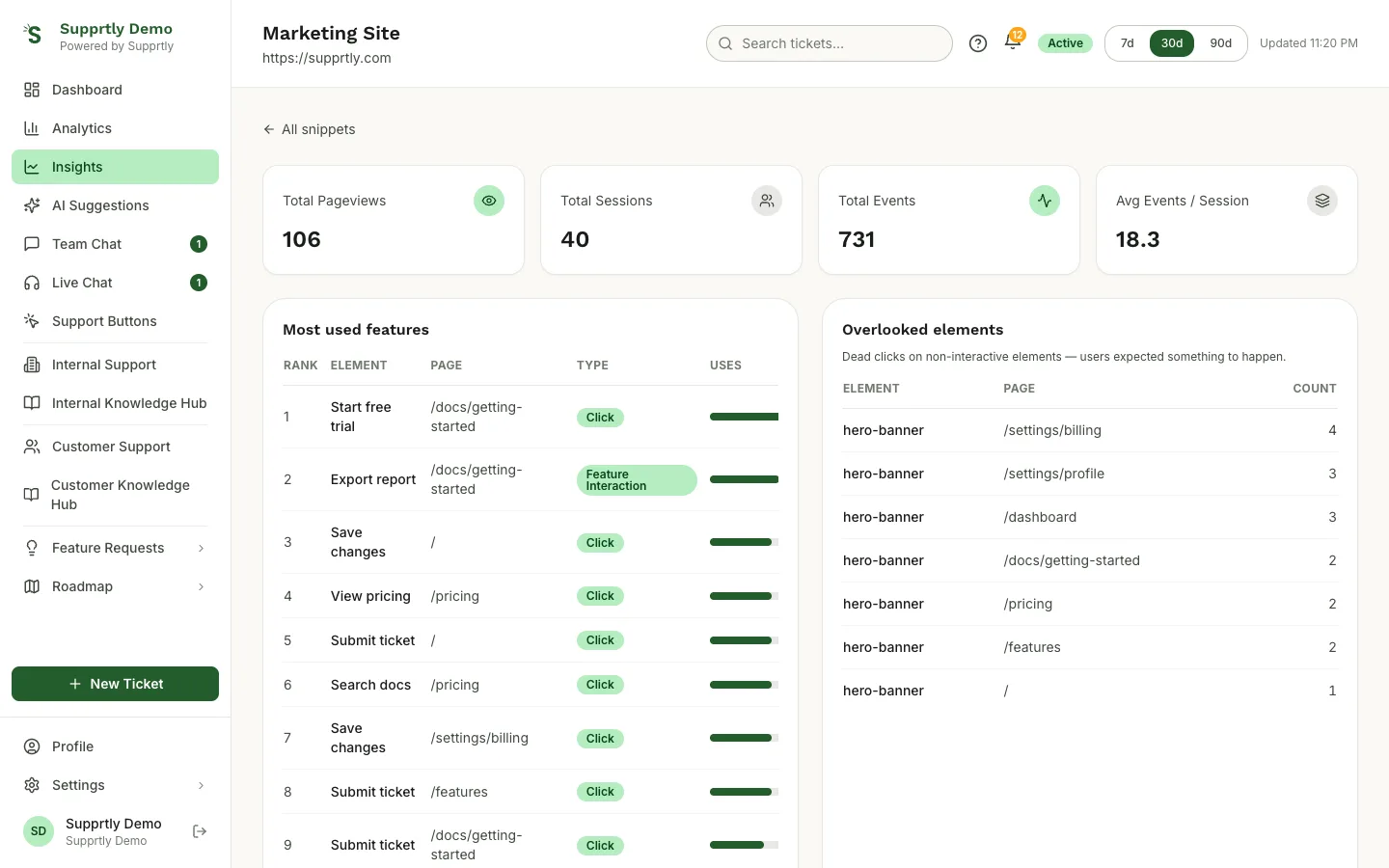
| Page views, sessions, events | Overall traffic for the period you choose (7, 30 or 90 days). |
| Most used features | The buttons, links and forms people use most. |
| Overlooked elements | Dead clicks: places people click that aren't clickable. They expected something to happen, so it's often a sign the design is confusing. |
| Rage clicks | Several fast clicks on the same spot, which usually means something is slow or broken. |
AI summary report
On a snippet's analytics page, Generate AI summary reads that snippet's numbers for the selected period and writes a short report: overall health, what's hurting users most (ranked, with the numbers behind each), recommended fixes with impact and effort, what's working, and what to keep an eye on. Open report shows it in a new tab, branded and ready to share; Download PDF opens your browser's print window, where you choose Save as PDF.
Name your features
By default, features are named from the button or link text. For clearer reports, add a data-insight attribute to the elements you care about:
<button data-insight="Export report">Export</button>Ready to set up your help desk?
Create your workspace and follow the steps above.