
Roadmap and public roadmap page
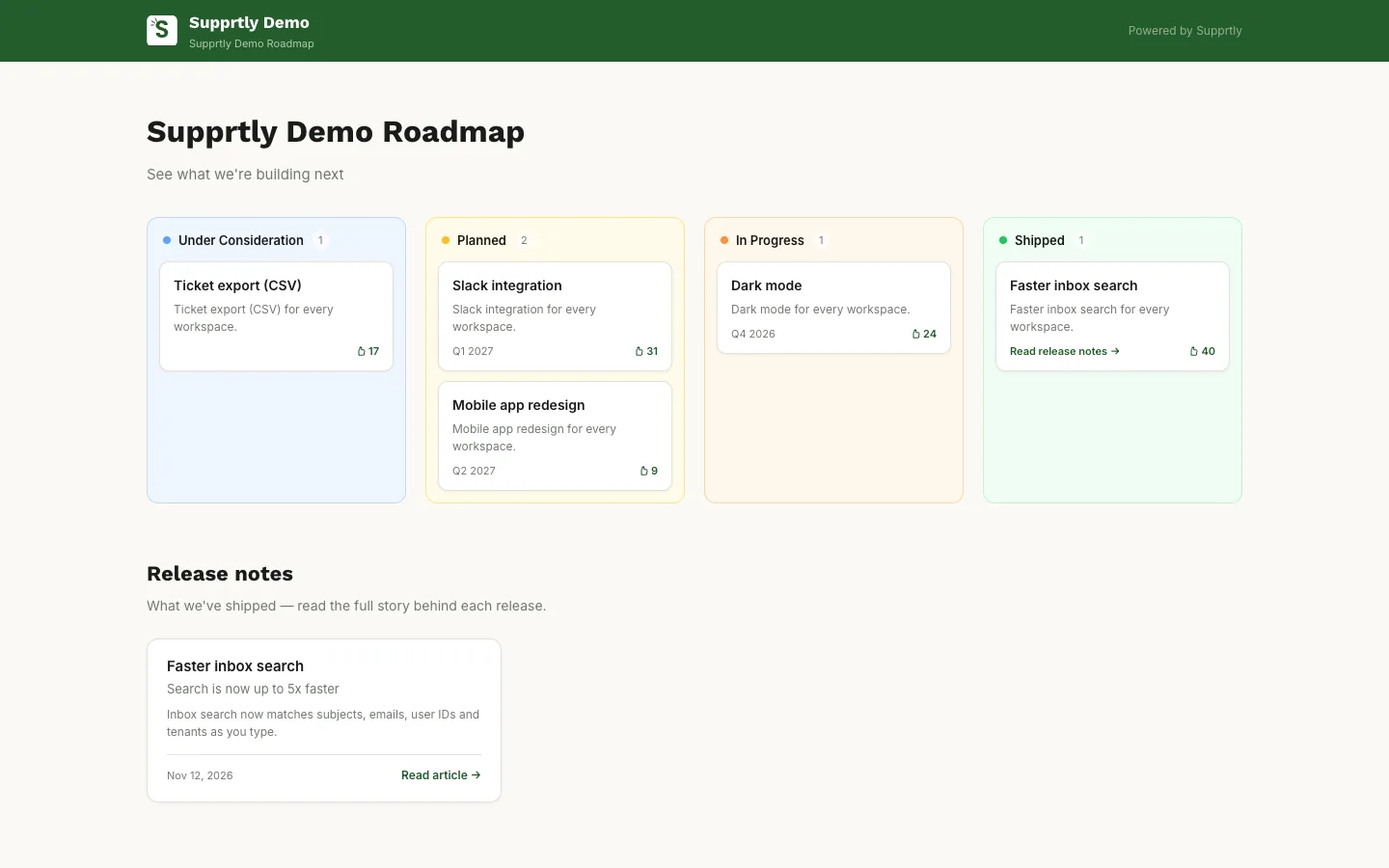
The roadmap is where you plan work and share it. Your team sees every item; customers see a public roadmap page with only the columns you choose, plus release notes for what shipped.
Owners and Admins manage the roadmap. Agents can view it.
Board, list and timeline
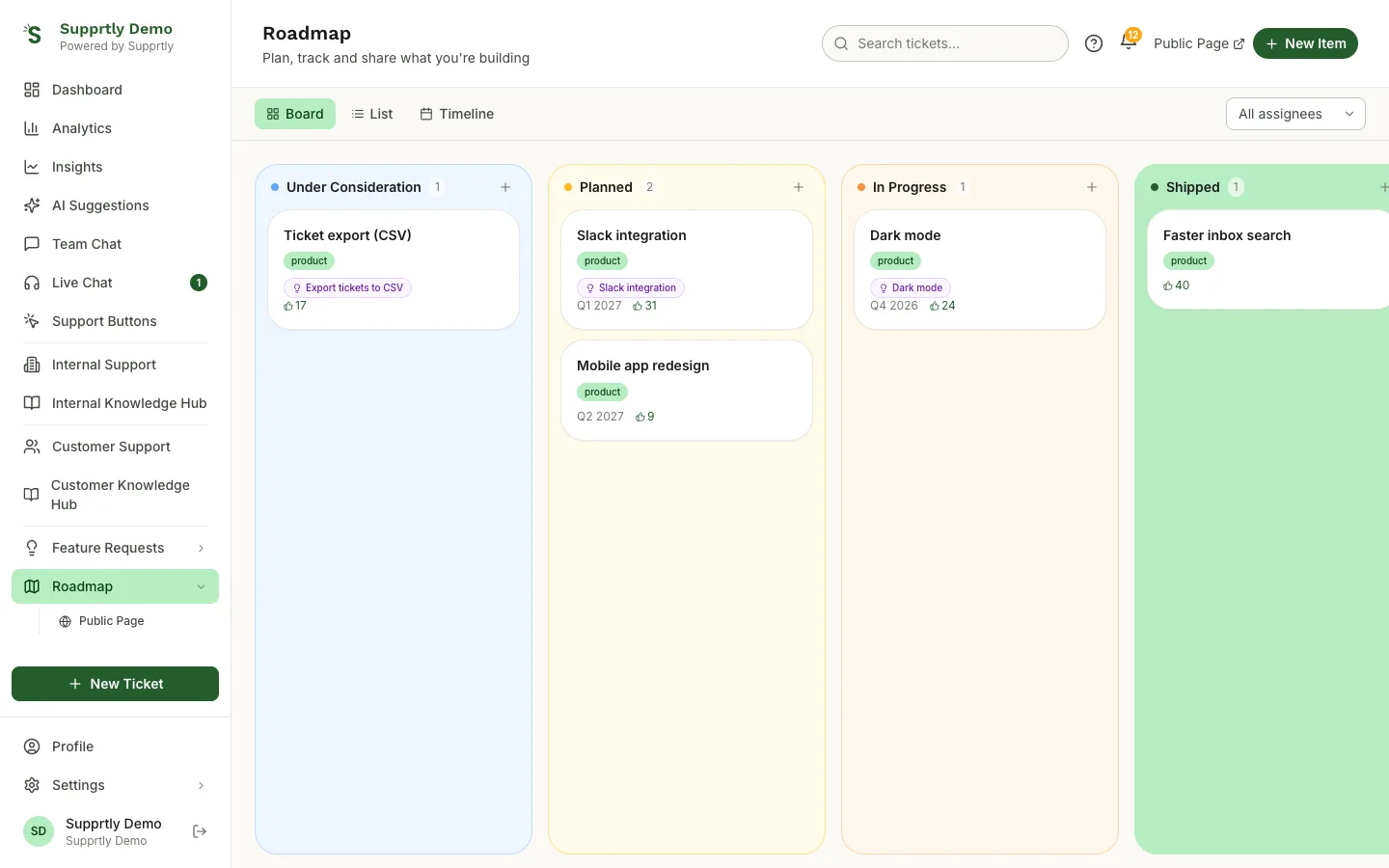
| Board | Columns for Under Consideration, Planned, In Progress and Shipped. Drag cards between columns. |
| List | A compact table of every item, good for bulk review. |
| Timeline | Items laid out by target date, to see what's coming when. |
Filter by assignee with the menu on the right.
Add and move items
- Click New Item (or + at the top of a column)
- Fill in the details
Title, description, tags, assignee and target quarter. Link feature requests so their votes count toward the item.
- Move it as work progresses
Drag the card to the next column. Moving it to Shipped is a good moment to write release notes.
Publish a public roadmap
- Open Roadmap → Public Page
Or click Public Page at the top of the roadmap.
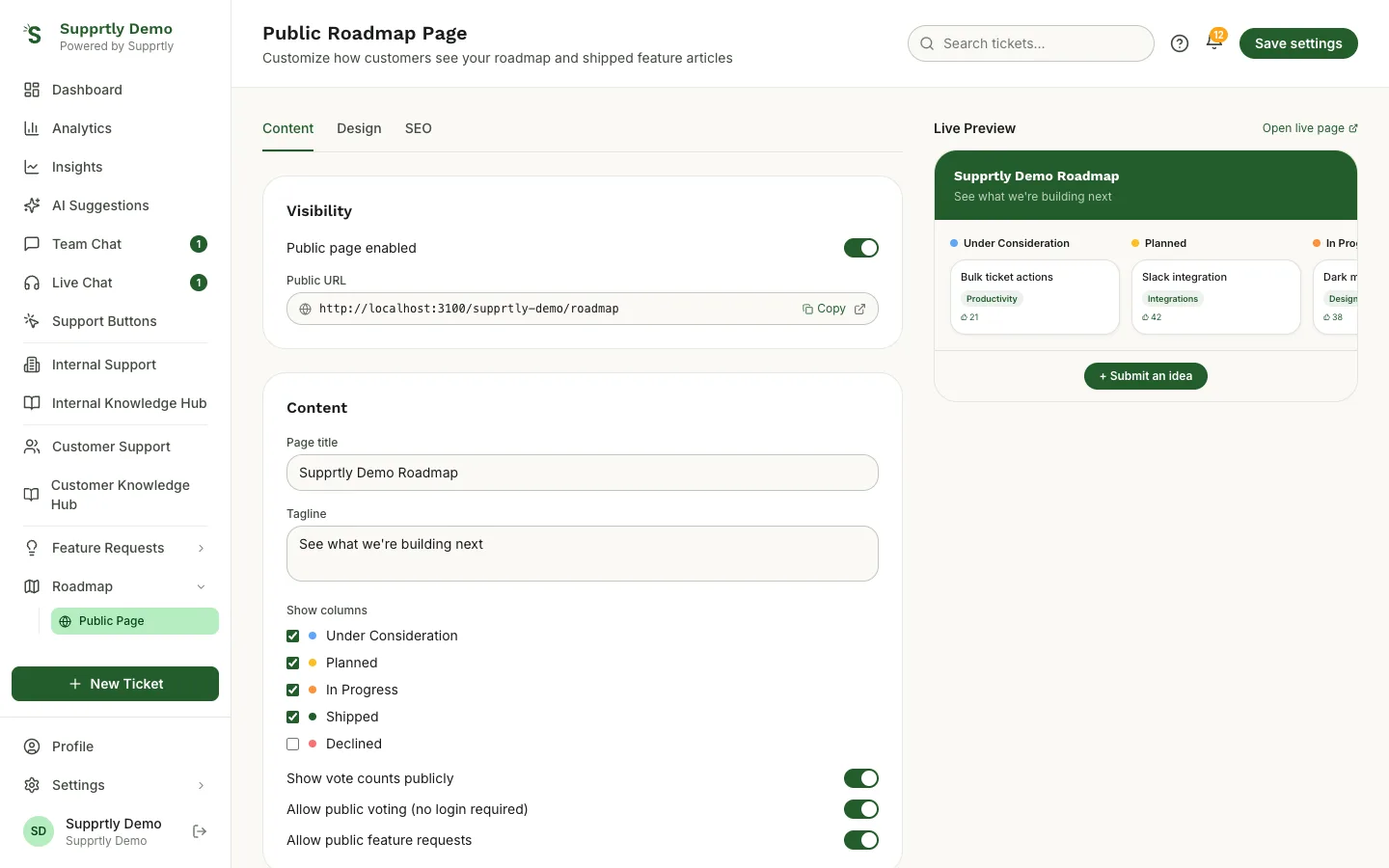
- Switch on Public page enabled and copy the URL
Your roadmap lives at
/your-workspace/roadmap. - Choose what to show (Content tab)
Set the page title and tagline, pick which columns are public (for example, hide Declined), and choose whether to show vote counts, allow public voting (no login required) and accept new feature requests.
- Match your brand (Design and SEO tabs)
Set colors and the page title and description search engines show. Then click Save settings.
Release notes
When an item ships, add a release article to it. It appears under Release notes on your public roadmap so customers can read the full story of what changed.
What changed report
Click What changed at the top of the Roadmap (or either knowledge hub), pick 7d, 30d or 90d, and click Generate report. AI writes a short update you can send to your team:
| Shipped | Roadmap items moved to Shipped in the period, one plain-language line each (using their release notes when published). |
| Knowledge hub changes | Articles added, edited, published, unpublished or removed in either hub, with what changed (for example "Added steps for exporting to CSV"), the sections touched and who edited them. |
| For the team | A few things the team should know or do because of the changes. |
Copy as text copies it ready to paste into an email or team chat; Download PDF saves a branded copy. Reports use your workspace's own AI key and are saved. Supprtly keeps a history of every article change from now on, so the report can say exactly what changed; articles edited before that are listed as “updated” without details. Owners and Admins generate reports; anyone with access to the roadmap and both knowledge hubs can read them.
Ready to set up your help desk?
Create your workspace and follow the steps above.